A slow Shopify store is not just frustrating for the visitors; it silently kills conversions, SEO rankings, and ad performance. According to Google, 53% of mobile users leave a site that takes over 3 seconds to load, while Shopify data indicates that with every 1-second delay in page load, conversions can fall by up to 7%.
The 5% to 10% conversion rate for e-commerce businesses with 4.8 million Shopify stores shows a challenge to Shopify store owners.
So,
“What are the few successful Shopify store owners doing right?”
How Shopify Compares to Other E-Commerce Platforms
Recent performance metrics have also shown Shopify’s strength in web performance as follows.
- The average Shopify website takes 1.2 seconds to load, while the average loading time for its competitors is 2.17 seconds.
- Shopify provides the shortest server response times in the e-commerce sector, with an average speed of about 2.8× faster and a maximum of nearly 4× faster relative to some competitors.
- When it comes to functional user experience, Shopify is the best-performing platform for Core Web Vitals. In May 2024, around 70% of Shopify e-commerce sites passed Google’s Core Web Vitals test, compared to other e-commerce platforms like WooCommerce, BigCommerce, OpenCart, and more.
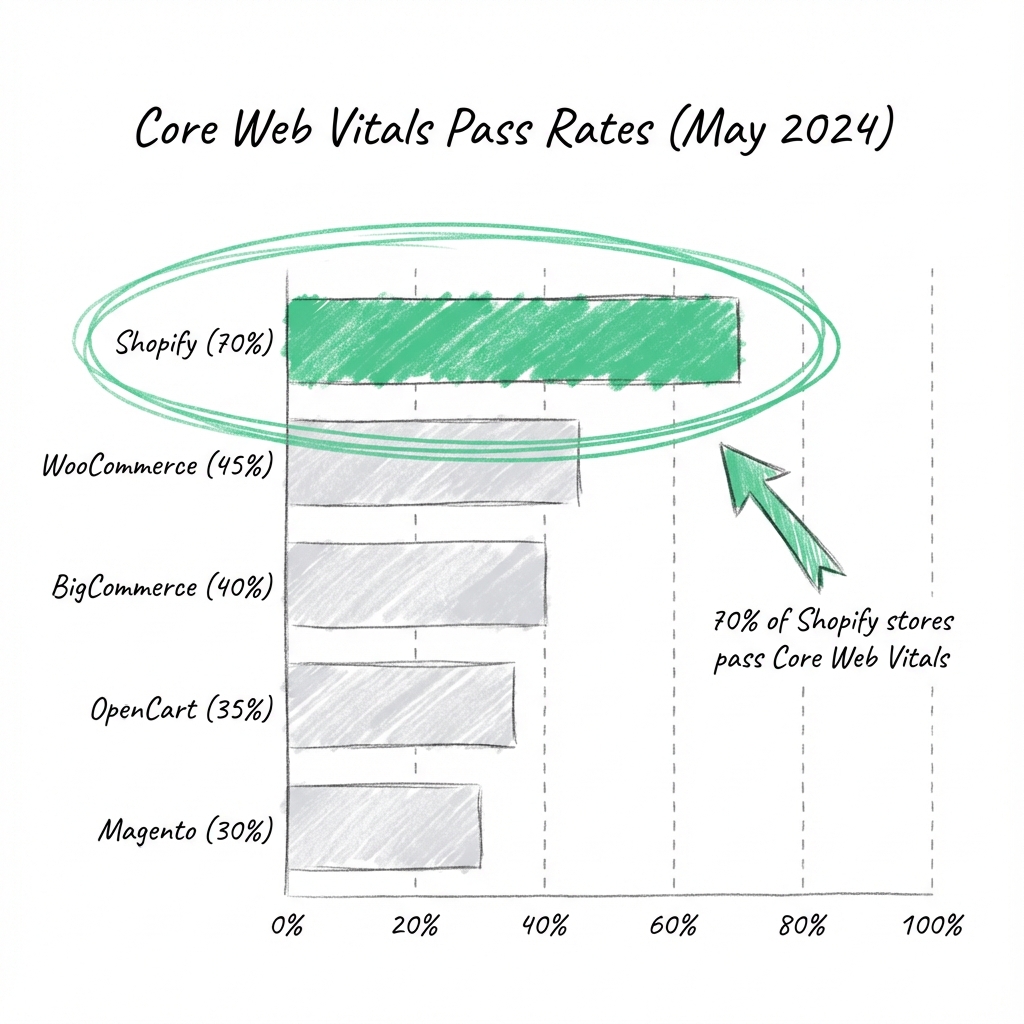
Looking at these figures, it is clear that Shopify has an excellent baseline performance capability out of the box.
What is Making My Shopify Website So Slow?
The Shopify site gets slowed down because of bloating that happens over a period of time. As a business increases in size, they usually accumulate various features that slow down the site.
This is actually a common problem with web performance in general for every site online.
For Shopify in particular, most of the slow-loading sites have the following common issues:
- Unnecessary fluid loops
- Unnecessary Code
- Uncompressed images in sub-optimal formats
- Heavy web pages
- Long Execution Times in the JavaScript Code
- Too many apps (see our favorite for speed below)
Another mistake we frequently notice that Shopify website owners make is that they forget to consider their mobile site functionality as well.
Since 79% total traffic on Shopify comes from mobile, it’s actually very important that you give them the best mobile experience too.
Tips for Shopify Store Speed Optimization
Disable Unused Apps and Features
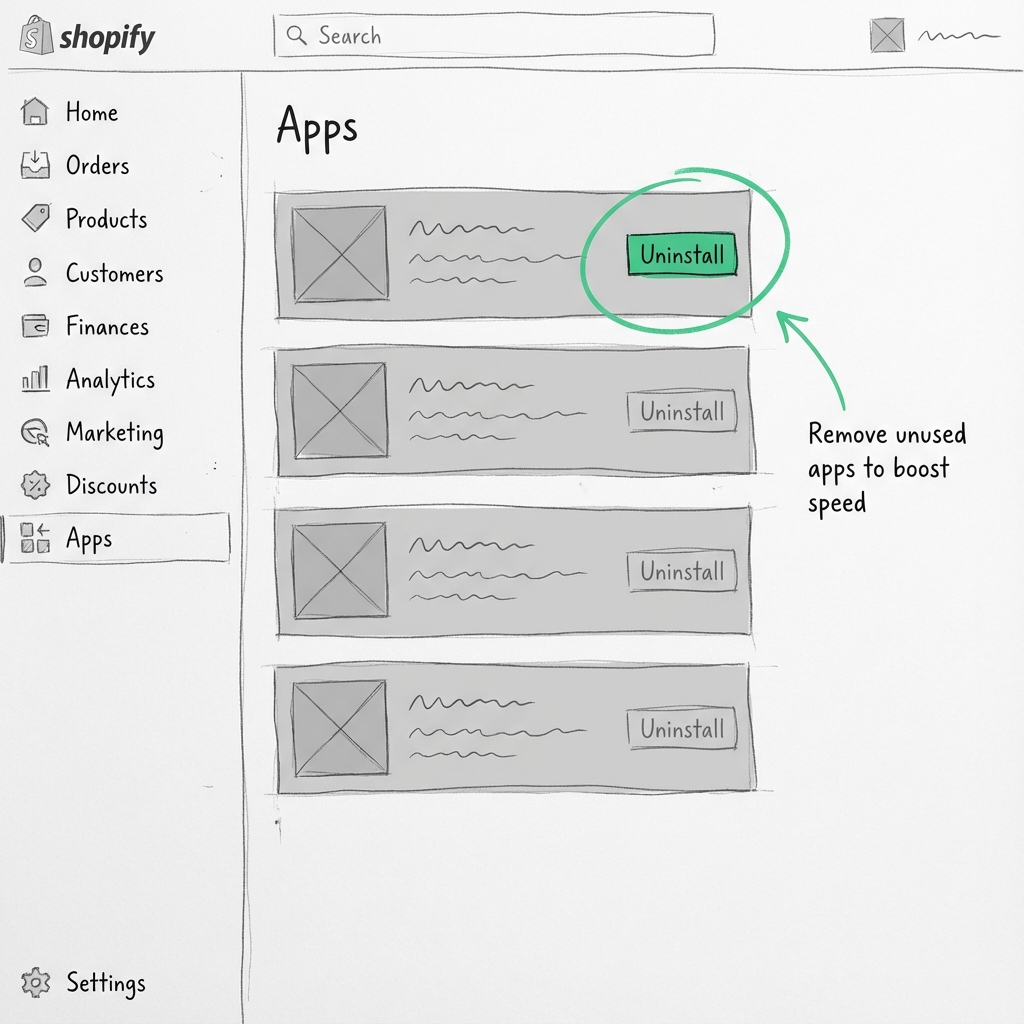
When you start using apps or other functions within your Shopify website, they install code and scripts to ensure smooth functionality. Even when you stop using the app, its scripts can run in the background processes and slow down the website functionality.
To correct this problem, simply do the following:
- Log in to your Shopify Admin and go to Apps from the menu on the left.
- Check the list of apps installed on the computer and see if any of them are no longer needed and can be deleted.
- Shopify recommends maintaining a low number of installed applications (fewer than 20) to get optimal performance.
- Click on an unused app and Uninstall it.
- Proceed to Apps & Sales Channels settings, where you can turn off any additional features or sales channels you’re not using.
Uninstalling unused applications decreases unnecessary scripts, increases page load speed, and ultimately helps your Shopify website load quickly on mobile as well.
Optimize Your Images
If images are not properly optimized, it increases the loading time by making the pages larger in size, especially mobile pages.
The solution to this problem can be adopted in the following easy-to-follow steps:
Resize Before Uploading
Upload your images in the size that they will display on your store. Do not use images taken with your camera or phone in too large a size.
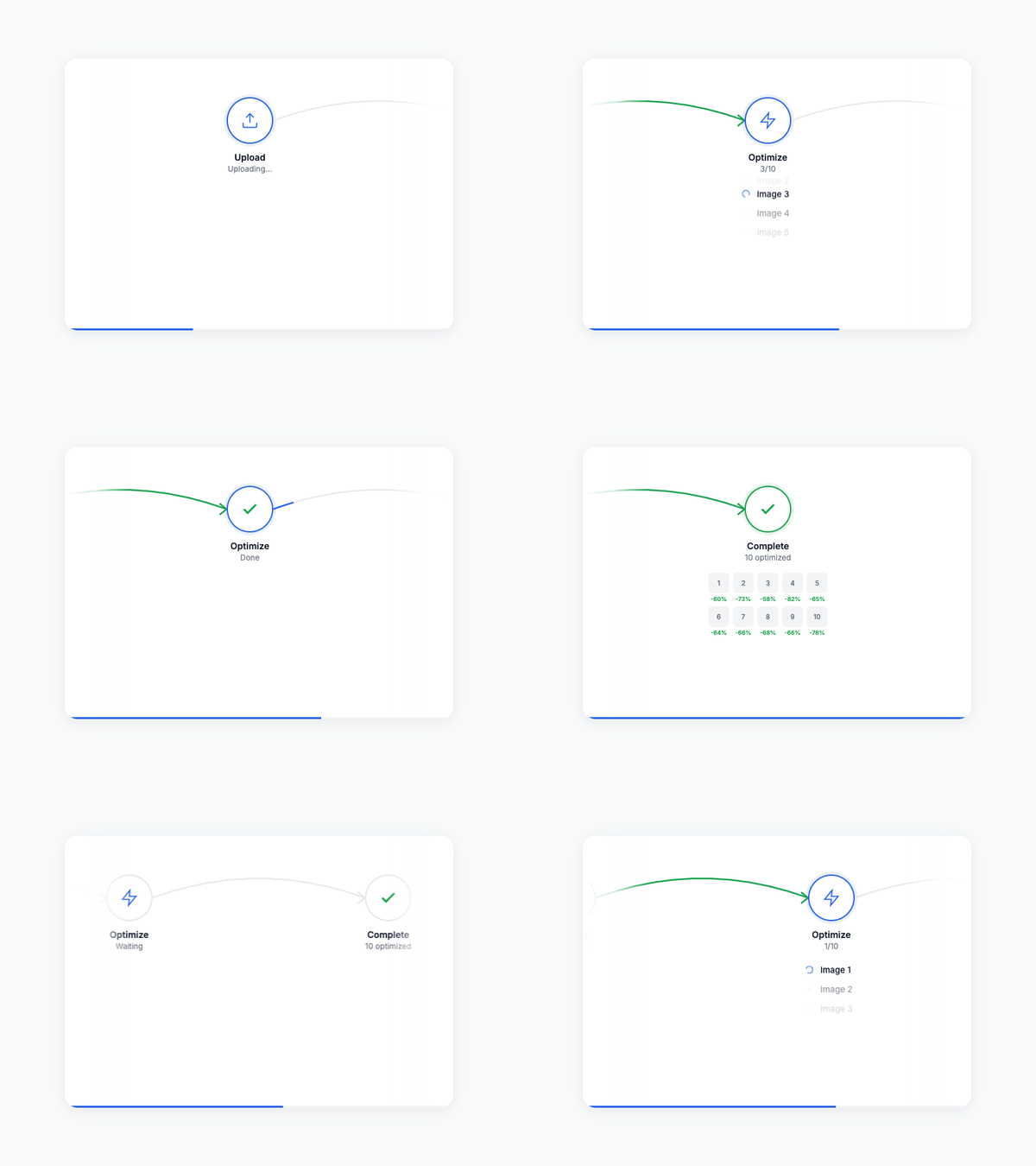
Compress each image
You can use image compression software, such as Sonic Page Speedbooster, to compress images without losing any details.
Use modern formats
Prefer WebP images as they are faster than JPG or PNG images.
Limit image count
Do not overload the item view with too many images. Keep only what helps users decide.
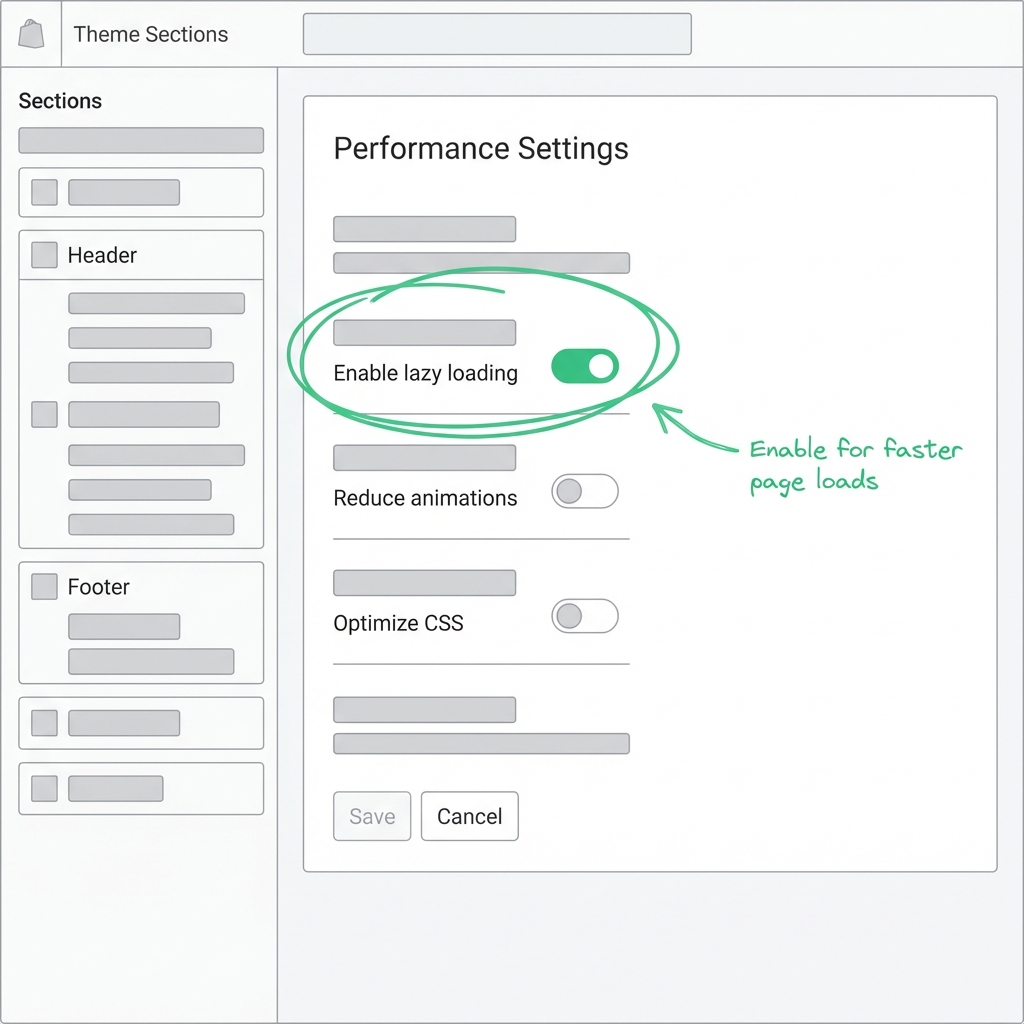
Enable lazy loading
Load the images when the users scroll down to the page, not all at once.
Optimize Your Theme’s Performance
Your Shopify theme plays a huge role in the speed at which your store is able to load. Poorly optimized or heavyweight themes can slow down a website, even when everything else is set up correctly.
Use the following steps to keep your theme at its best:
- Use a lightweight theme
- Remove unused theme features
- Limit custom code
- Avoid excessive animations
- Keep your theme updated
Reduce the Number of HTTP Requests
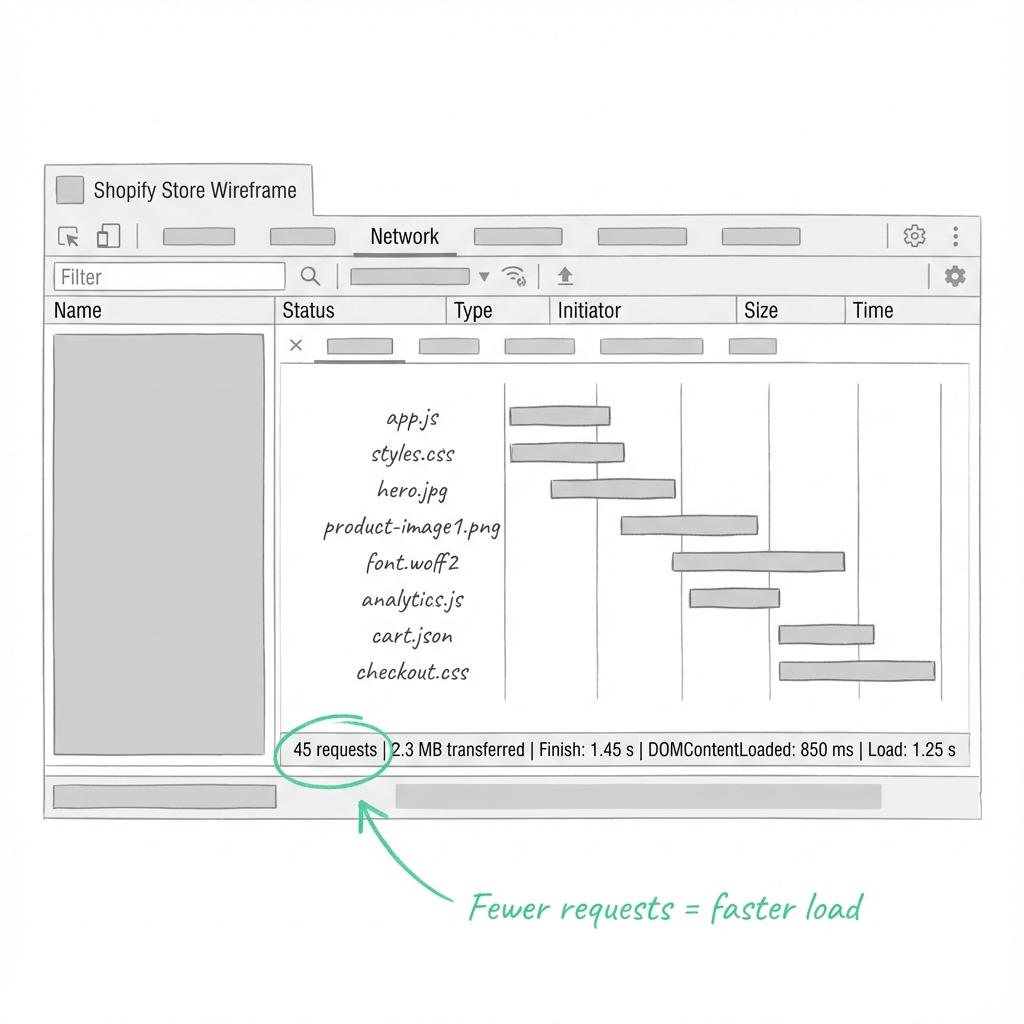
With every visit to your Shopify store, the browser makes a series of HTTP requests to display images, scripts, fonts, and stylesheets.
The number of requests that your site makes is the longer it takes to fully load. Reducing these requests can significantly improve your website speed.
Unnecessary apps/scripts to be removed
Every application comes with additional files, leading to more HTTP requests.
Restrict use of custom fonts/icons
Too many fonts or icon libraries lead to extra requests.
Where possible, combine CSS & JavaScript
This is because fewer files mean fewer requests for the browser:
Use minimal third-party widgets.
Tools for chat, popups, or tracking may involve multiple requests. *
Optimized images
Large image galleries result in an overall increase in requests per page.
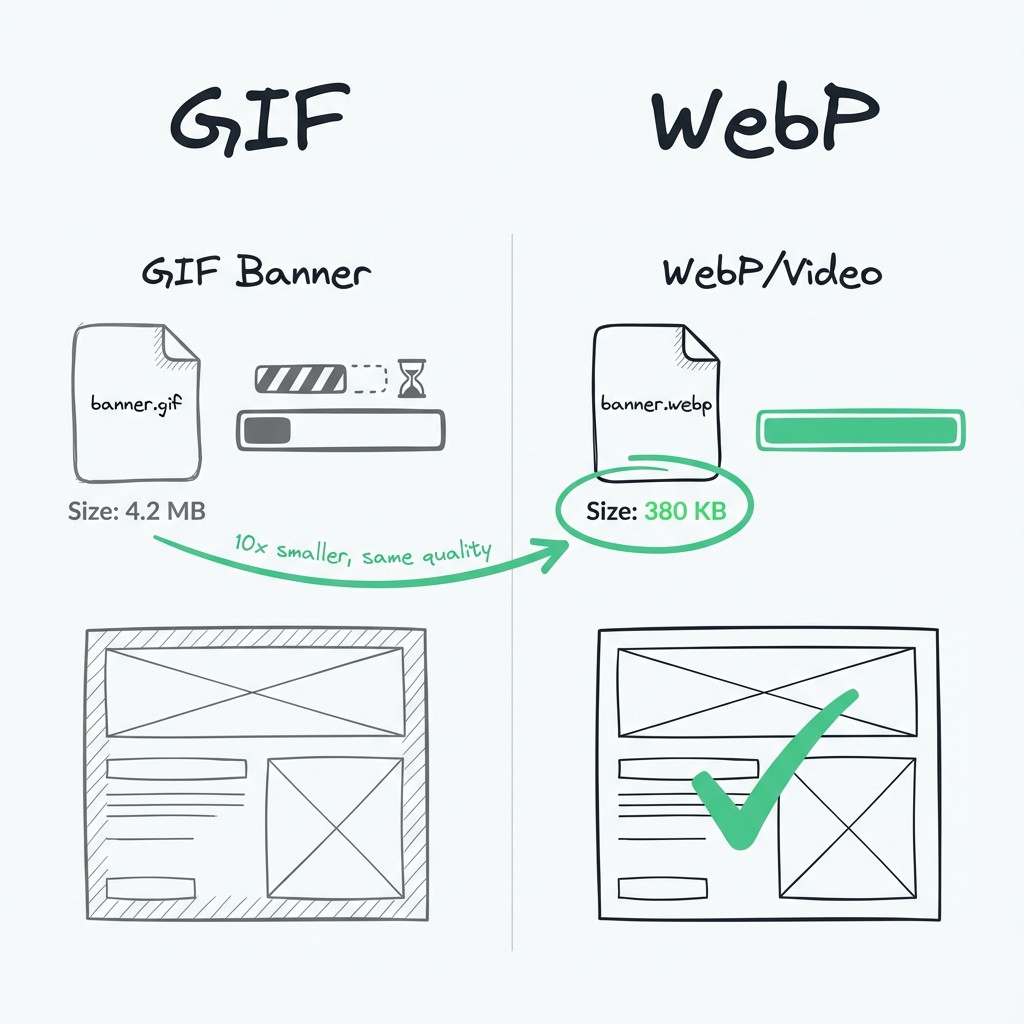
If you are presently using GIF images for banners, features, or special effects, think about moving over to static image files. A JPG or WebP image file can offer the same level of clarity with much smaller file sizes. For motion content, short videos are more efficient than GIF images.
Run Your Store Through Google PageSpeed Insights
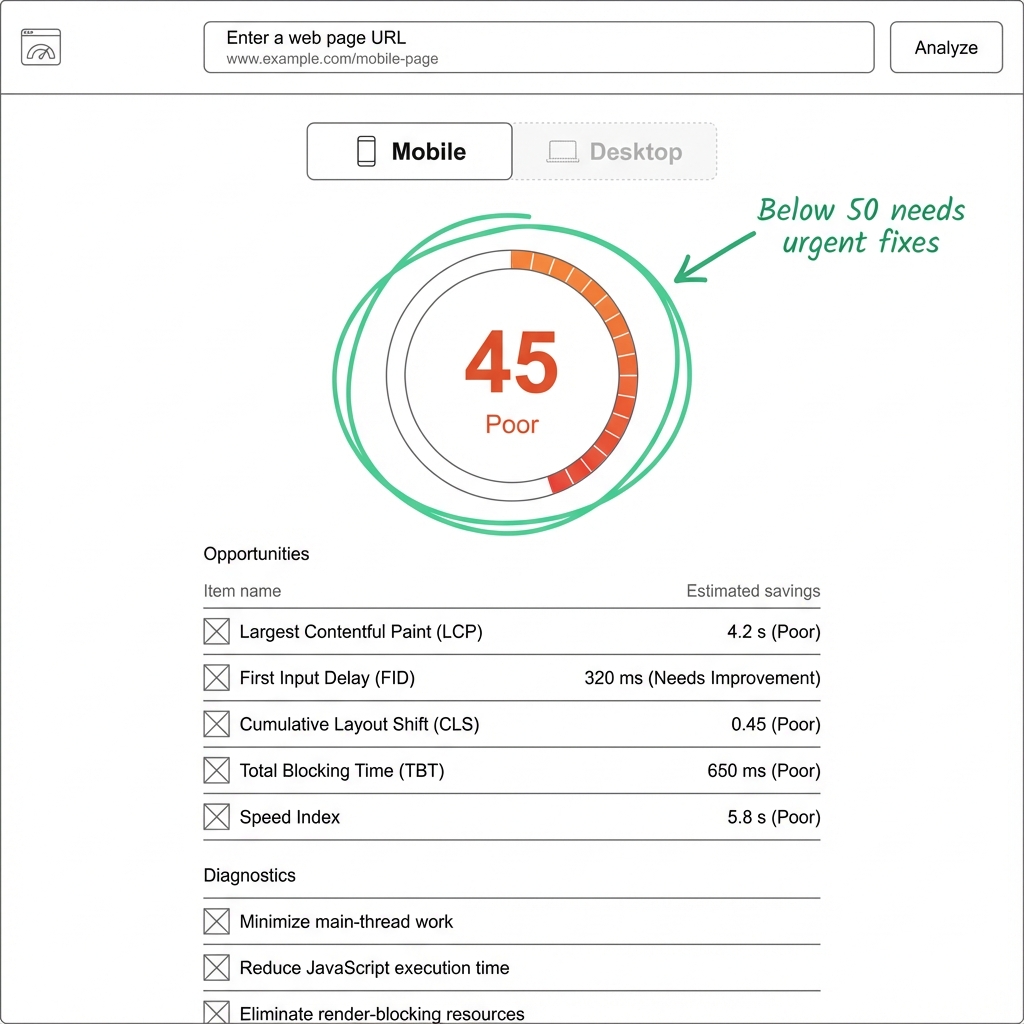
But before you can get your Shopify store speed up, you need to understand what exactly keeps it slow. Google PageSpeed Insights will do just that by analyzing your site and showing you how it performs on both mobile and desktop.
Just copy your store’s URL and paste it into Google PageSpeed Insights. In a matter of seconds, you will see the performance score and, of course, basic metrics such as loading time, interactivity, and visual stability.
Moreover, the tool highlights specific problems-largest images, unused JavaScript, render-blocking resources-and explains how they may affect your site.
Follow these insights as a checklist and fix the high-impact issues first. After fixing them, re-run your store through PageSpeed Insights.
Running your site regularly through PageSpeed Insights will give you an idea of where improvements were made and how your Shopify Store can remain fast and user-friendly.
Enable Quick View on Category Pages
Quick View allows customers to view product details right from category or collection pages without having to navigate to a new page.
This results in a smoother browsing experience for customers, making it seem as if your store is loading quickly.
Why Quick View helps with speed and usability:
- Minimizes full page reloads for product viewing
- Reduces server calls triggered by frequent page requests.
- Engages users while exploring several items
- Accelerates comparison and decision-making for products
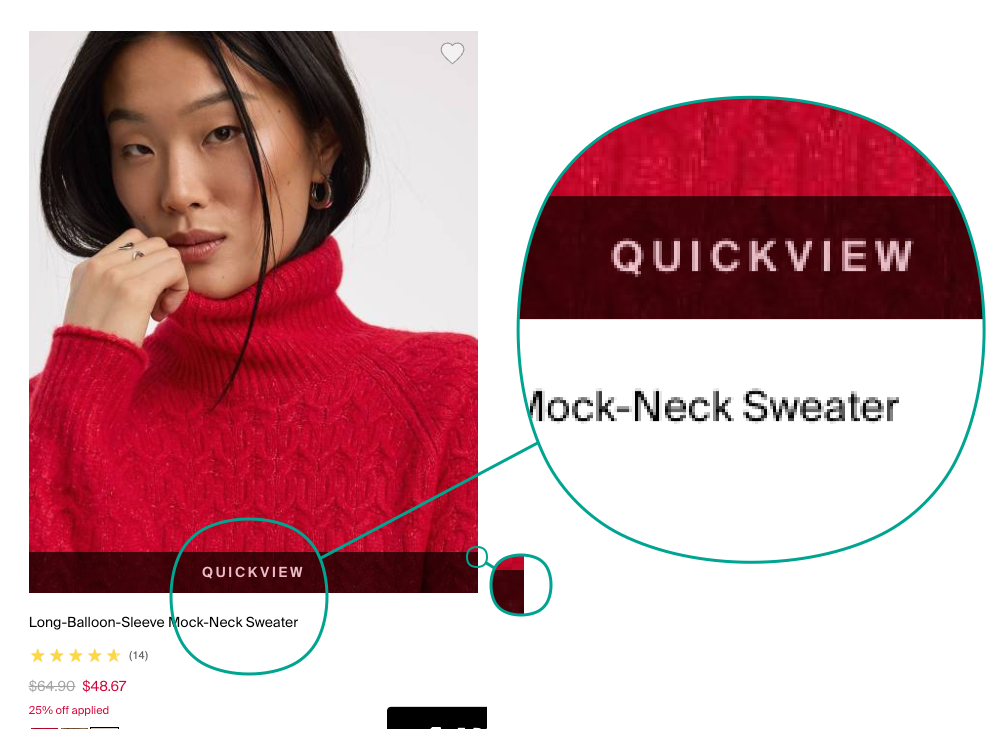
Best practices for using Quick View:
- Use a light Quick View feature with less scripting
- Display necessary information such as the image, price, and varieties
- Avoid loading large image galleries or videos inside Quick View
- Make sure it is fully functional on phones.
Reduce Redirects and Broken Links
They might seem harmless, but redirects and broken links can quietly weigh your Shopify store down. Every redirect adds extra time before the full loading of a page, while broken links frustrate visitors and hurt your SEO.

Use Third-Party Apps Wisely to Boost Speed
Unfortunately, not all applications will slow down your Shopify store; some applications are created to improve performance to make your site load faster. Sometimes, using the right applications will optimize scripts, images, and loading pages even without complex coding.
How performance-focused apps help:
- Minimize JavaScript and CSS in such a way that they get loaded only when needed.
- Improve Core Web Vitals automatically for better PageSpeed grades.
- Defer non-critical scripts so pages render faster.
- Compress images and videos to decrease the load time.
Below are five widely used Shopify page speed booster tools and how they help.
1.
What it does:
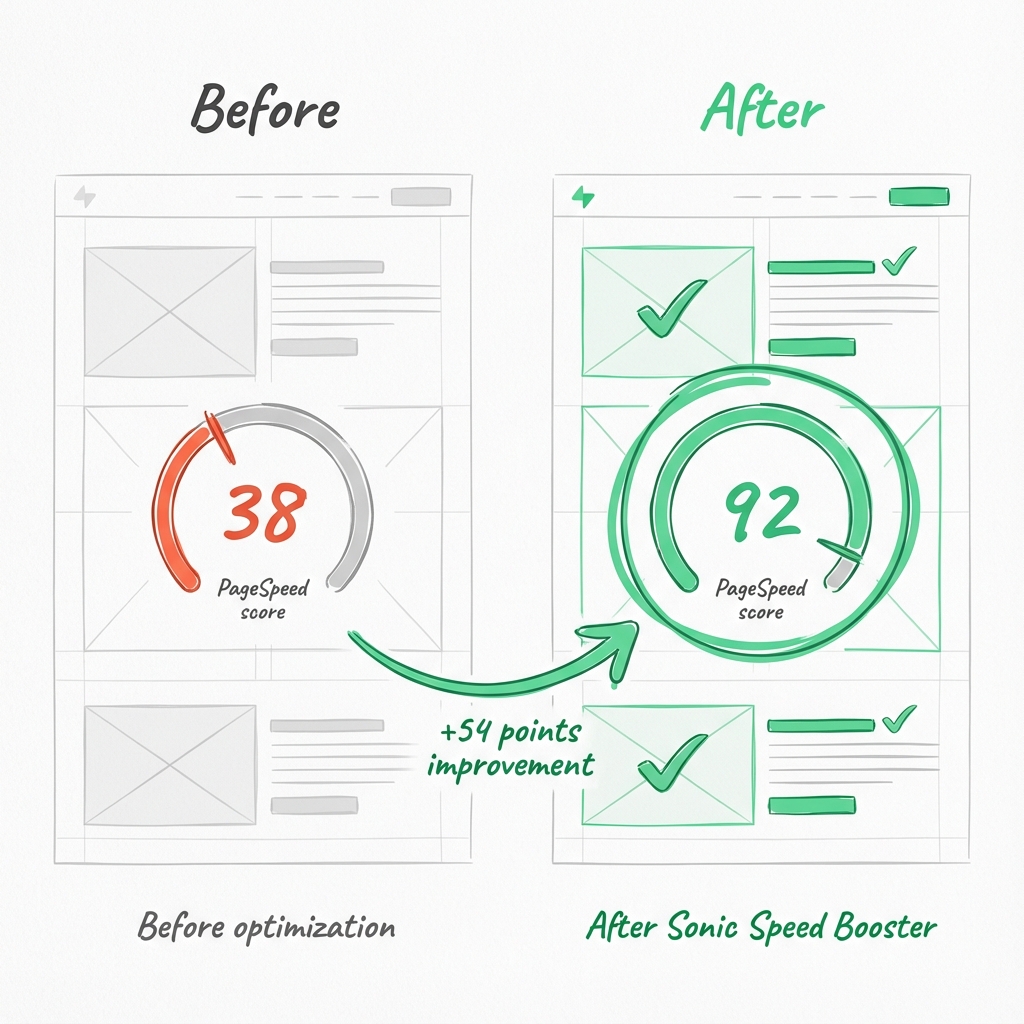
Sonic Page Speed Booster focuses on front-end optimization to reduce render-blocking resources and improve core metrics like LCP and CLS.
Key features:
- Defers non-critical JavaScript
- Removes unused CSS
- Optimizes image delivery
- Improves Core Web Vitals automatically
Pros:
- Easy setup with minimal manual work
- No theme rewrite required
- Strong results on mobile
Cons:
- Best results when combined with other optimizations
- Changes may require testing to avoid layout shifts
2. PageFly (Performance-Optimized Builder)
What it does:
PageFly is primarily a page builder, but its clean, performance-focused layouts reduce unnecessary code and improve rendering speed.
Key features:
- Lightweight page structures
- Lazy loading for images
- Minimal JavaScript overhead
- Faster landing page creation
Pros:
- Great for speed-focused landing pages
- No heavy theme requirements
- Visual editor helps design optimized pages
Cons:
- Not a dedicated speed app
- Adding too many elements can still slow pages
3. Shogun Optimize
What it does:
Shogun Optimize enables building faster store pages with optimized assets and streamlined code output.
Key features:
- Asset optimization
- Mobile-first rendering
- Performance-friendly components
Pros:
- Clean output that reduces load time
- Helpful for high-traffic stores
Cons:
- Higher cost compared to basic tools
- Not focused on store-wide script optimization
4. Nitrosurf / NitroPack (Full-Site Performance Optimizer)
What it does:
NitroPack is a full-featured performance optimization tool designed to automatically handle caching, script deferring, asset optimization, and more.
Key features:
-
Full page caching system
-
Critical CSS generation
-
Lazy loading
-
Automatic image optimization
-
Script deferral and bundling
Pros:
- Comprehensive optimization in one place
- Automatic tuning for Core Web Vitals
- Works across the whole store
Cons:
- May require initial configuration tweaks
- Some features might conflict with specific themes or apps
Use a Content Delivery Network (CDN)
Shopify already uses a global CDN, but your external assets may not.
Common CDN Mistakes
- Hosting fonts externally
- Loading videos from third-party servers
- Using unoptimized external scripts
Where possible:
- Host assets within Shopify
- Use Shopify-supported fonts
- Compress third-party media
Common Shopify Speed Myths (That Waste Time)
- “More apps = more features = more sales”
- “Perfect PageSpeed score means success.”
- “Shopify is slow by default.”
Speed is about smart choices, not technical complexity.
How Fast Should a Shopify Store Be?
Ideal benchmarks:
- Homepage: under 2.5 seconds
- Product page: under 2 seconds
- Mobile LCP: under 2.5 seconds
Anything slower needs attention.
Wrapping It Up
Speed is not a one-time fix, but an ongoing competitive advantage.
Faster Shopify stores rank better, convert better, cost less to advertise, and come across as more reliable.
If you apply even half of this guide, you will see measurable improvements in both performance and revenue.
The fastest stores don’t just look better, they sell more.

About Gaurav Radadiya
I am co-founder of Adfinite, where we build eCommerce solutions for growth and efficiency. I build highly efficient automations for inventory management, order processing, logistics, returns management, product listing and marketing.